
Qwen Image Layered
Decompose an image into editable RGBA layers, then recolor, replace, or revise a single layer while keeping structure.
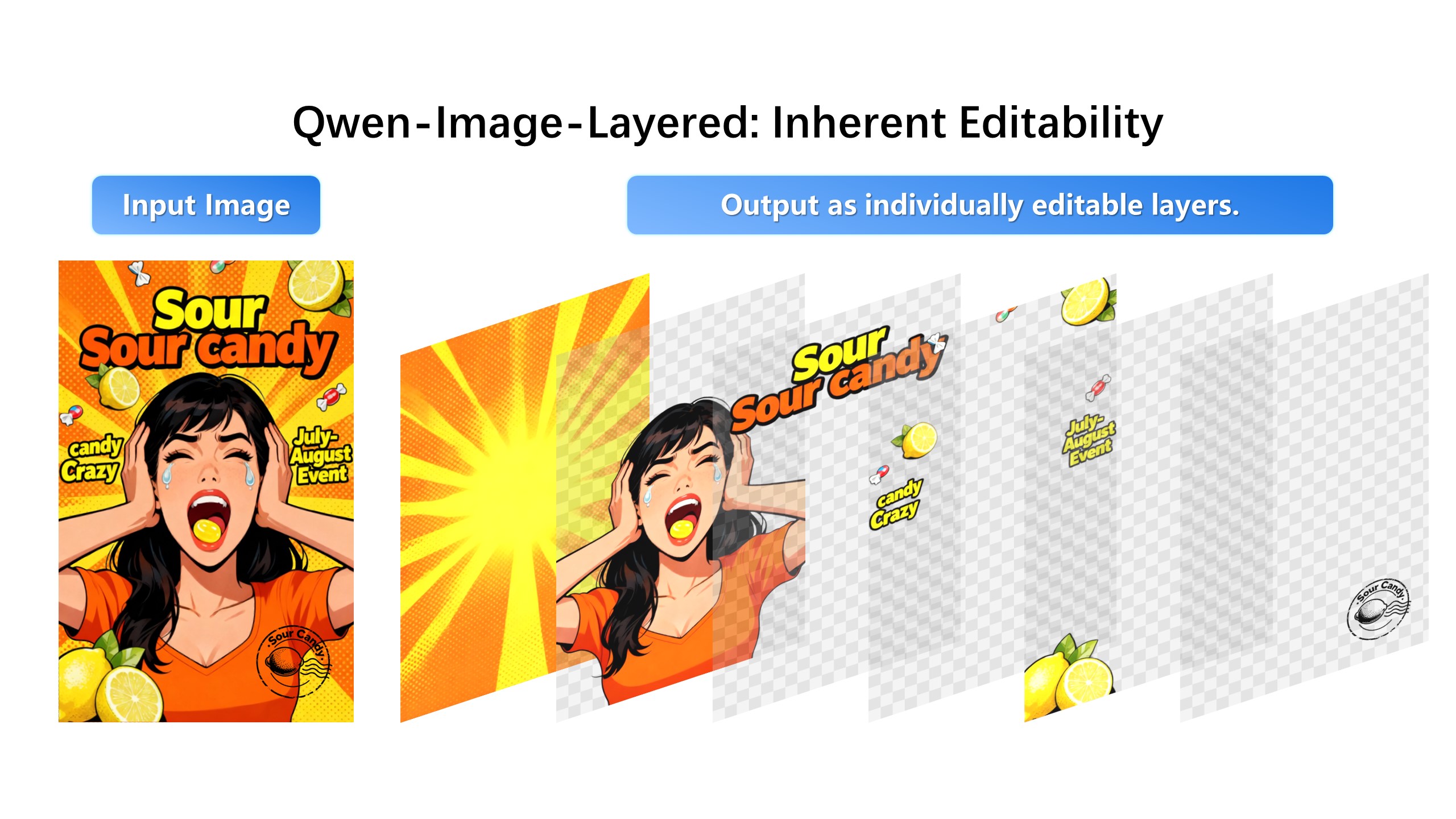
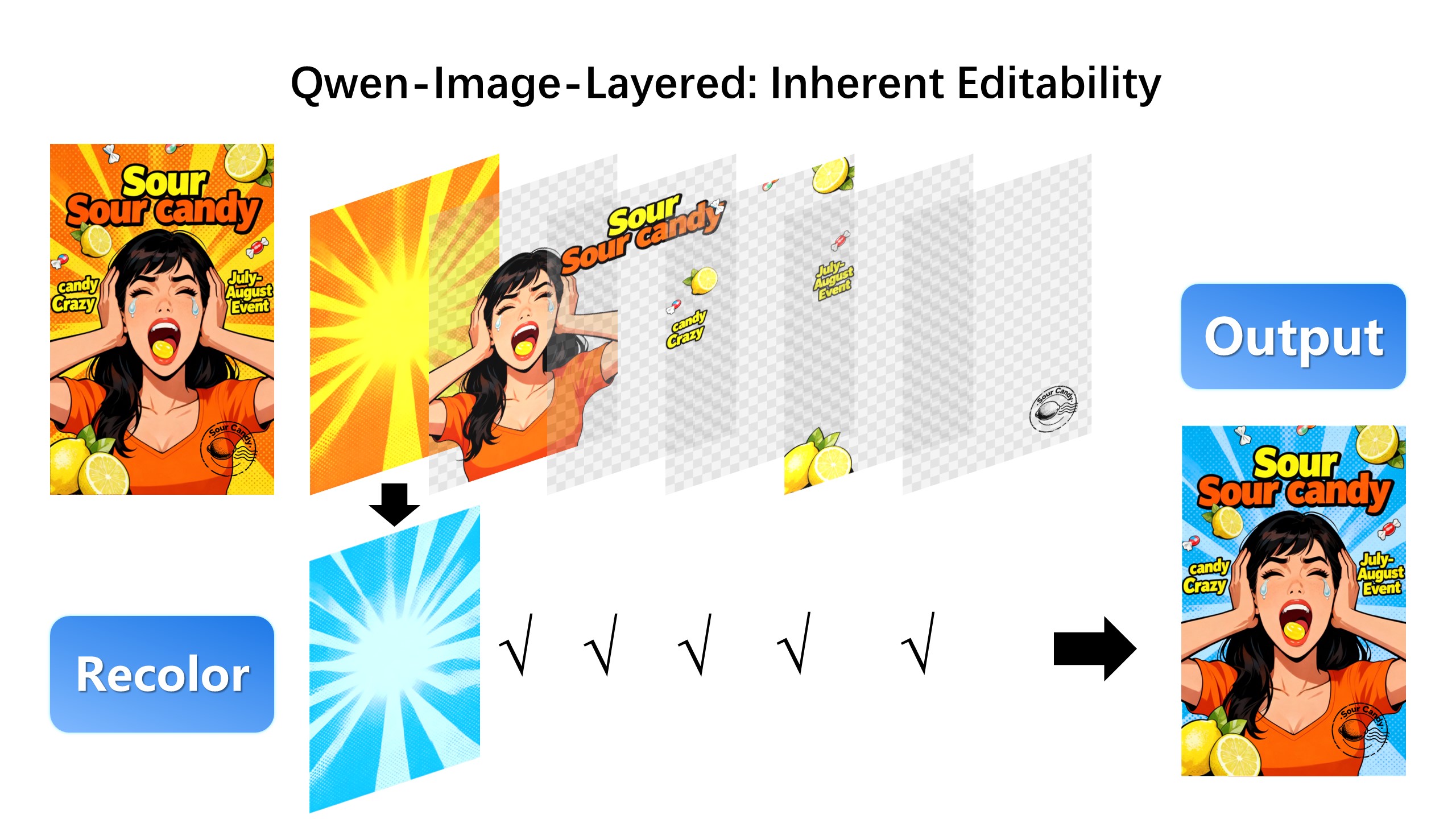
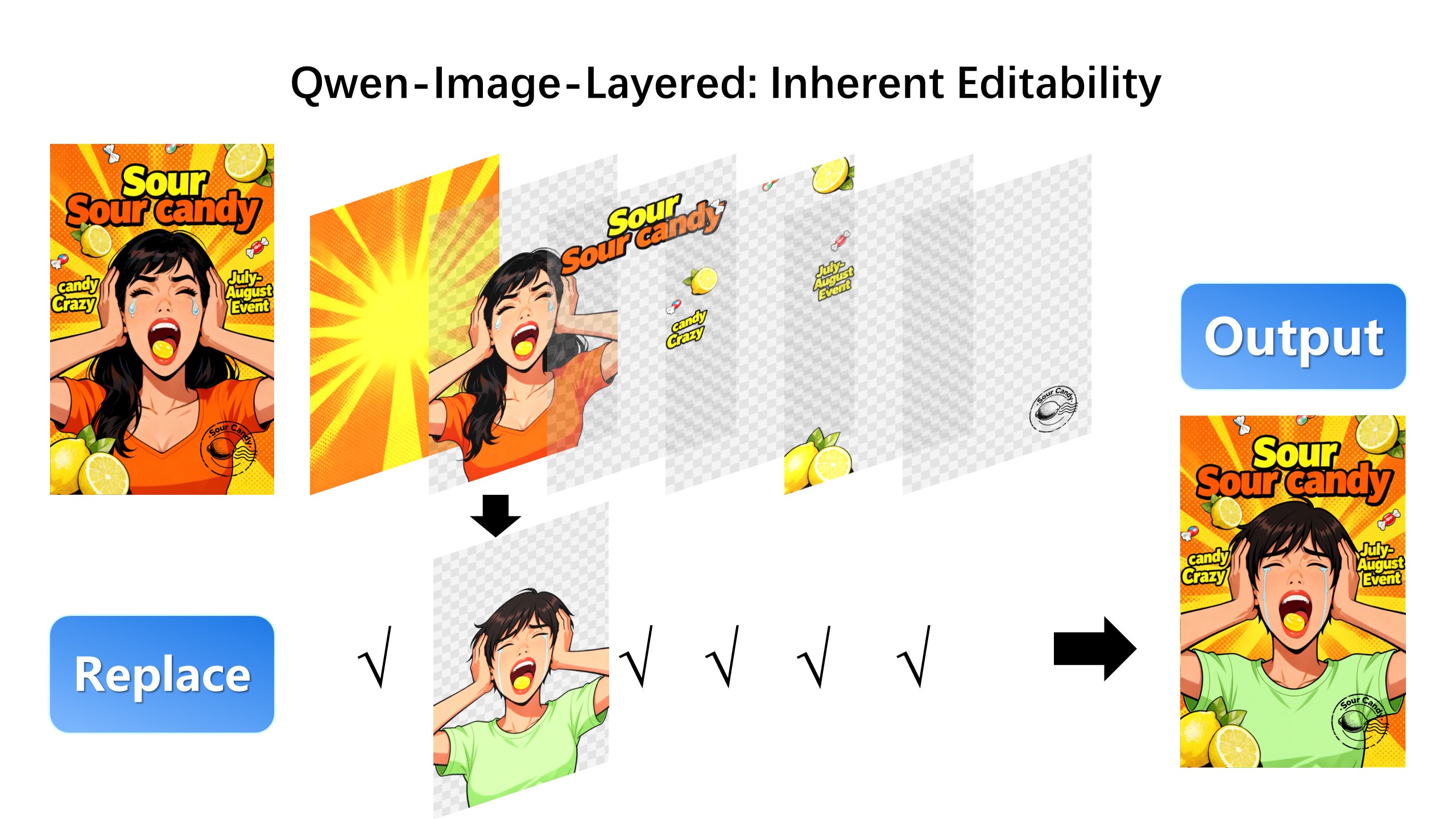
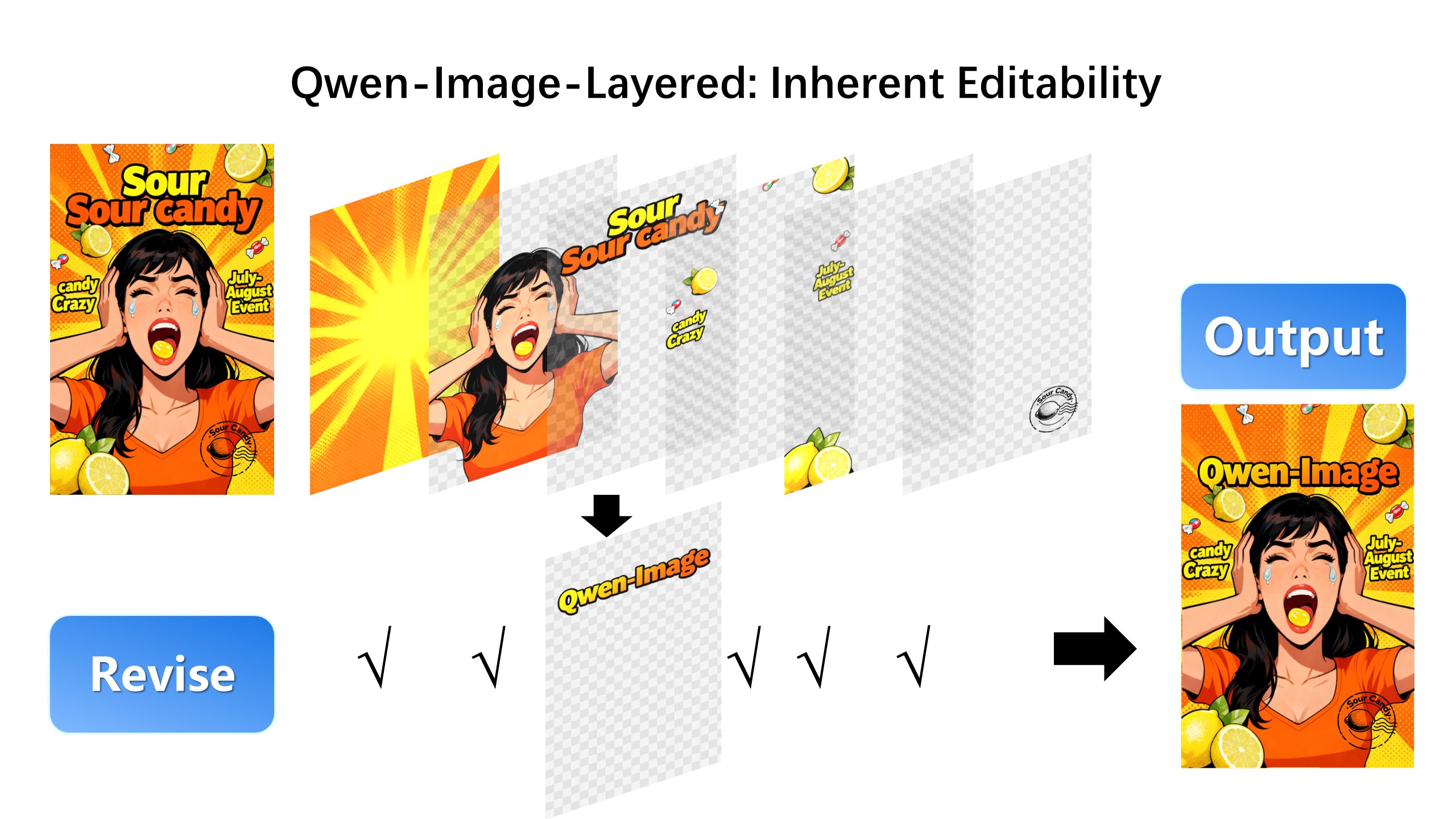
The prompt describes the full scene (including occluded parts); it does not control individual layers.
Model positioning
Qwen Image Layered: built for inherent editability
The model decomposes an image into multiple RGBA layers so you can edit with minimal drift.
Multi-layer RGBA decomposition
Split an image into independently editable layers.
High-fidelity edits
Move, scale, and recolor layers with strong visual fidelity.
Variable layer counts
Choose 1-10 layers depending on the scene complexity.
Recursive decomposition
Decompose a single layer again for complex compositions.
Qwen Image Layered prompt category examples (with official images)
Qwen Image Layered prompts stay scene-first: describe the whole image, then note the layer count or the change you will make after decomposition. These examples show how Qwen Image Layered stays stable when targets and constraints are explicit.
1) Layered decomposition
Template: full scene description + number of layers (e.g., 4). Add style or lighting so Qwen Image Layered preserves the look.
2) Recolor a layer
Template: describe the full scene, then recolor the target layer after decomposition. Specify the new color/material for predictable edits.
3) Replace an object
Template: describe the full scene + identify the layer to replace. Provide the replacement subject, size, and position to keep composition stable.
4) Revise text
Template: describe the full scene + revise the text layer. Quote exact wording and layout so Qwen Image Layered renders clean typography.
Qwen Image Layered prompt best practices (results-focused)
Prompts describe the whole scene, not the meaning of each layer.
Practice 1: Describe the full scene
Prompts should capture the overall content, including occluded elements.
- Do not try to control each layer's semantics
- Describe subject, scene, and key elements clearly
Practice 2: Set a reasonable layer count
More layers give finer decomposition, but also add complexity.
- Common range: 1-10 layers
- Start at 4 layers, then adjust
Practice 3: Avoid heavy overlap
Overlapping objects and transparent materials can be hard to separate.
- Avoid large overlaps
- Glass/water transparency may mix layers
Practice 4: Layer order is not fixed
Layer order is decided by the model; identify target layers manually.
- Use alpha coverage to find layers
- Preview each layer before editing
Practice 5: Edit after decomposition
Use the layered output with an image editor to recolor, replace, or revise.
- Edit only the target layer
- Recompose to get the final image
When is Qwen Image Layered a better fit?
Best for layered edits with strong consistency requirements.
Layered design and asset prep
Split complex visuals into editable layers.
- Easier post-production
- Cleaner structure
Targeted recolor or replacement
Adjust local elements without affecting the rest.
- Apparel/material color swaps
- Keep overall consistency
Text revision
Update text content or placement.
- Poster or cover copy updates
- Stable layout
Detail iteration
Iterate on local details without redoing the scene.
- Faster versioning
- Fewer full regenerations
FAQ
Qwen Image Layered FAQ
Common questions about Qwen Image Layered.
Get started
Split and edit your images with Qwen Image Layered
Decompose first, edit later, and keep consistency stable.
References and sources
Model details and examples from official papers, repos, and docs.
arXiv paper: Qwen-Image-Layered
Layered decomposition methodology and details.